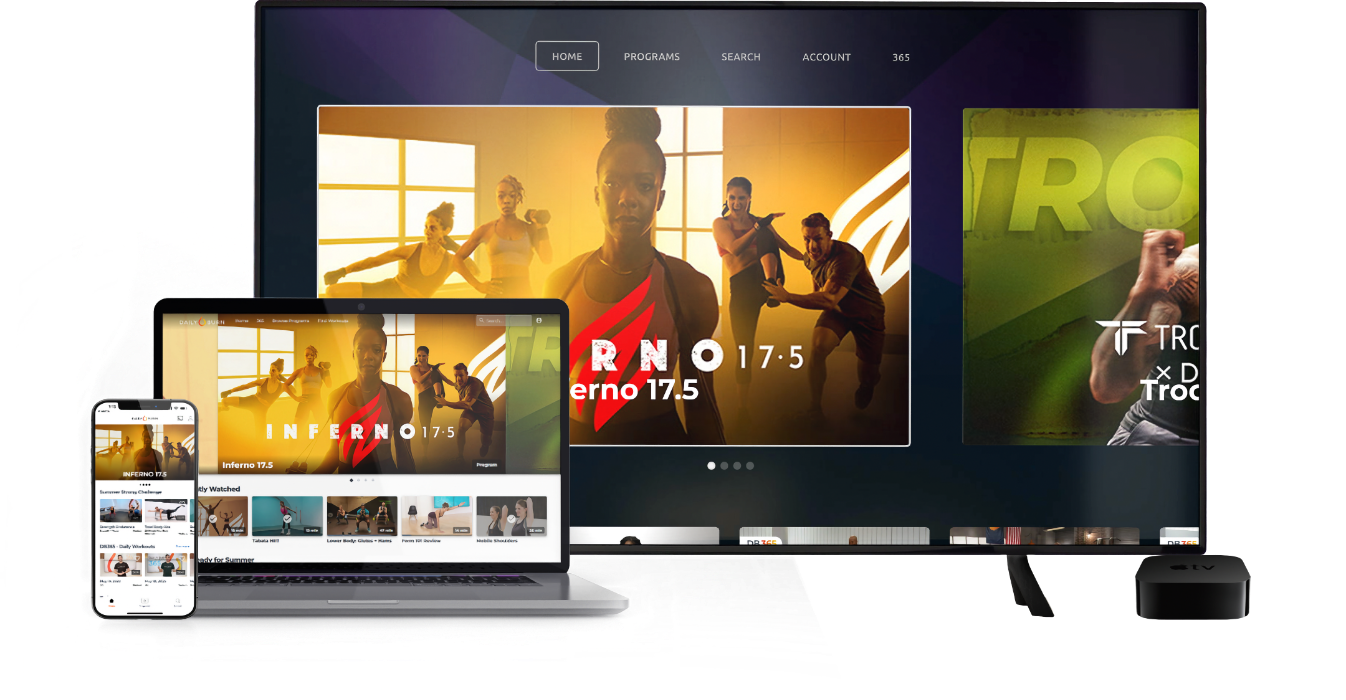
There are a number of ways to get your personalized DailyBurn workout videos on your television. You can connect to your television from your iPad®, iPod®,
iPhone®, Android™ device, or your computer. Connecting to your TV depends on your device.
-
Connect to your TV Using an iOS® Device and AppleTV®
Streaming to your television is easy with AppleTV®. When you stream to your AppleTV® your iPad®, iPhone®,
or iPod® becomes a remote for you to easily progress to a different exercise and to control your workout.
-
Connect to your TV Using an iOS® Device Without AppleTV®
Don't have an AppleTV®? Use an HDMI adapter for your iPad® 2 or iPhone® 4/4S to connect to your television. You can use your
device as a remote to control your workout and log your challenge entries and your weight.
-
Connect to your TV Using an Android™ Device
If your Android™ device supports HDMI mirroring, you can stream your personalized DailyBurn workouts to your television. To stream to your television, you'll
need to have the appropriate adapter. For more information regarding the appropriate adapter, check with your device's manufacturer.
-
Connect to your TV Using Your Mac®, PC, or Linux Computer
Most televisions support connecting to a computer by using a VGA connection or HDMI (depending on both your television and computer setup). If your computer and television both support
VGA then only a VGA cable is required. If your computer and television both support HDMI then only an HDMI cable is required. For your Mac® you'll need to determine which type of
video port you have. Click here to determine which video port your Mac® uses.
If your computer does not support any of the mentioned connections, check with your computer manufacturer and TV manufacturer.